32 x 32 · 0 cells · 0 colors · ~0m 0s
100%

Click or drag an image here

100% Free · Processed locally inside your browser

COLOR TRACKER Click a color swatch to isolate and highlight it on the grid (Esc to clear)

Upload an image above to start...
? What is this tool and how does it work?

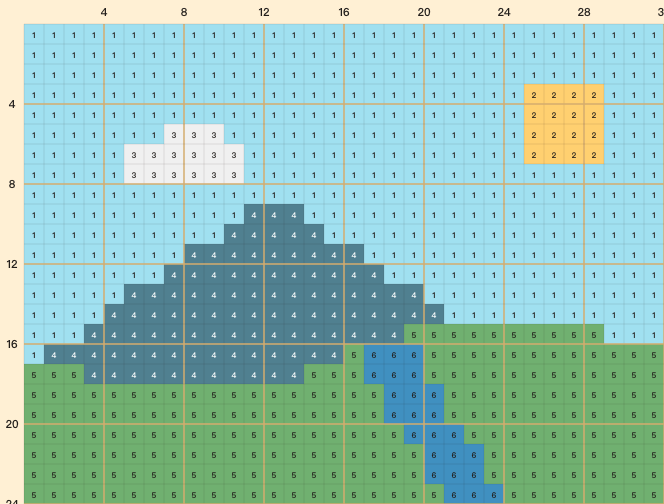
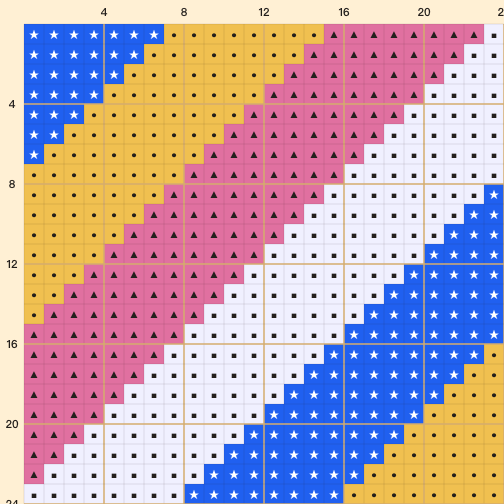
Living the Grid is an interactive design tool tailored specifically for Tomodachi Life players. It translates any graphic into a pixel grid map matching the game's unique Palette House color presets and editor layout. It does not import files directly into the console; it acts as a blueprint you follow while manual repainting.

How to use the tool step-by-step?

  1. Select Canvas Size: Choose your target item preset (e.g. Square for clothes, Book cover, TV screens). Adjust the Brush size to automatically calculate the correct grid layout.
  2. Choose Color Presets: We default to the official 84 Game Palette, automatically matching your image colors. You can also customize using Auto-Extraction or theme palettes.
  3. Color Tracker & Focus: Click any color in the bottom tracker to highlight its cells. Check the HEX to HSB panel to see the exact console button-press formula (Zr / ← / ↓) to create that color.
  4. Print-by-number: Turn on the paint-by-numbers mode to stamp each cell with its palette position coordinates (e.g. R1-C2 represents Row 1 Column 2).
  5. Export & Share: Save as a grid worksheet or export a JSON project file so you can drag and drop it back to continue later.

Q. What is the difference between palette modes?

Game Palette matches the exact 84 colors you can create in Tomodachi Life — the only option that is truly reproducible in-game. Auto extracts dominant colors from your image for the most faithful look, but those colors cannot be produced in-game. Pastel / Warm / Retro / Mono are themed presets for stylized work.

Q. What does the Dither filter do?

It scatters checkerboard-style pixels between adjacent colors to fake smoother gradients. Useful for skin tones, hair, and skies — but it makes flat color regions look noisy. Most effective when the color limit is low (≤8).

Q. How do I read the HSB press counts (Zr×26 · ←×63 · ↓×0)?

In Palette House, reset all three sliders to zero, then press the buttons the listed number of times: ZR for Hue (right), ← to reduce Saturation, ↓ to reduce Brightness. Click any swatch in the bottom color tracker to display its values.

Q. Is my image uploaded to a server?

No. All processing happens locally in your browser using the Canvas API — no network requests, no collection. It works fully offline.

Q. What is the JSON project file for?

It snapshots your full grid state — pixel colors, completion marks, canvas settings — into a tiny file you can share with friends or drag back into the app later to resume editing. Editing controls lock while a JSON is loaded to keep the snapshot intact.

Important Note: This tool is exclusively a pattern maker. You still need to draw it manually pixel-by-pixel on your Nintendo 3DS or emulator while looking at this reference grid.